%20(4)-1.png?width=1950&height=299&name=Cybaverse%202024%20White%20new%20(2)%20(4)-1.png)
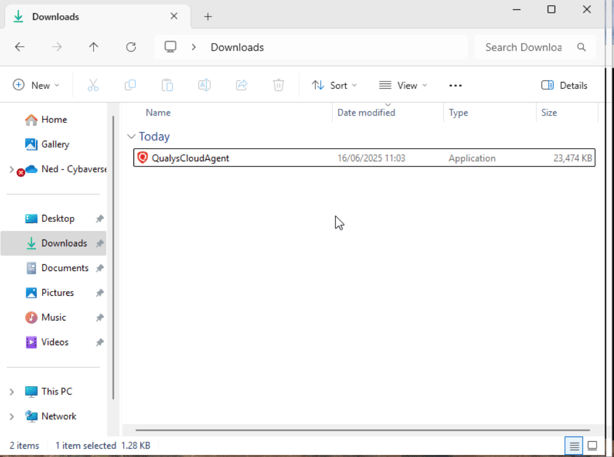
Download the Installer
Make sure the QualysCloudAgent.exe file is saved in your Downloads folder.
Find Your Username
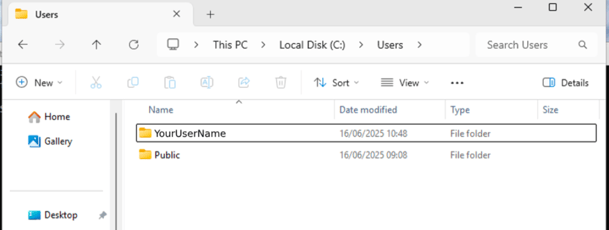
To locate your Windows username:
- Open This PC (or This Computer)
- Navigate to: C:\Users\- Your username will be listed as one of the folder names (e.g. C:\Users\JohnDoe)
Open Command Prompt as Administrator
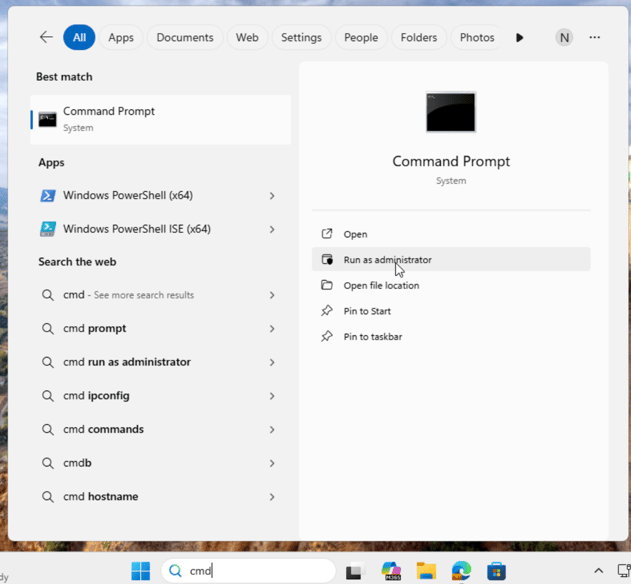
- Click the Start menu, search for Command Prompt
- In the right hand interaction pane, select Run as administrator
Navigate to the Downloads Folder
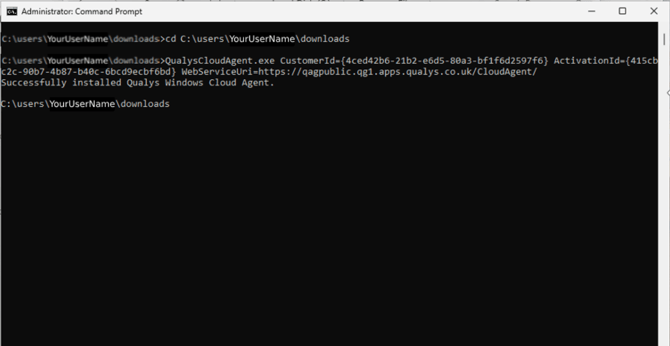
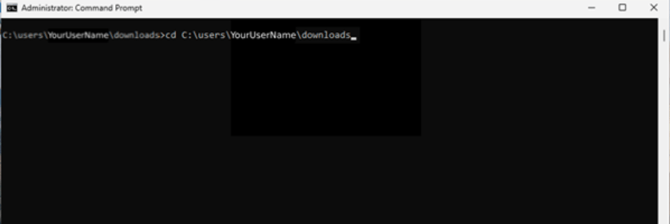
In the Command Prompt window, enter:
cd C:\Users\YourUserName\Downloads
Replace 'YourUserName' with the username you found earlier, then press Enter.
Run the Qualys Installer
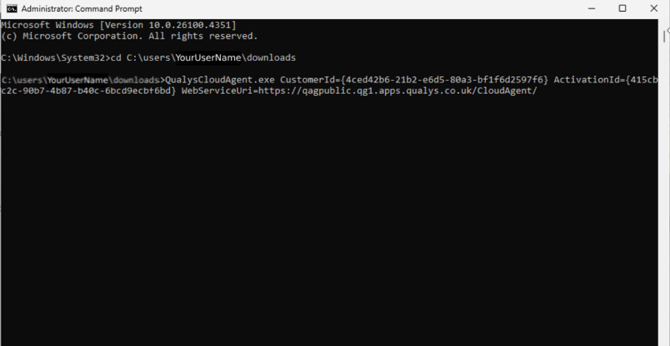
- Enter the Qualys installation command, including your activation code (found on your internal targets page), then press Enter.
Example format:
QualysCloudAgent.exe CustomerId=XXXXXXX ActivationId=YYYYYYY
Confirm the Installation
Once complete, you should see a message stating:
"Successfully installed Qualys Windows Cloud Agent"