%20(4)-1.png?width=1950&height=299&name=Cybaverse%202024%20White%20new%20(2)%20(4)-1.png)
NOTE: There are two versions of the Qualys agent available for download from the platform:
- Apple Silicon (for ARM processors)
- x64 (for Intel-based processors)
Please ensure you are using the correct version:
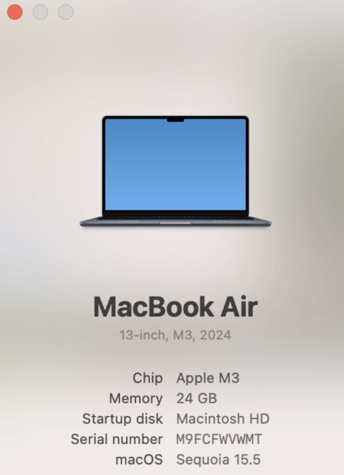
- Click the Apple menu and select 'About This Mac'
- If your chip reads 'Apple M*', download the Apple Silicon version
- If it does not have an M* chip, download the x64 version
Installing applications such as Qualys via Terminal requires administrator permissions.
It is advised to perform this directly from an admin user account.
Download the Installer
Ensure the 'QualysCloudAgent.pkg' file is saved in your Downloads folder. You can find this in the internal targets section on the platform.
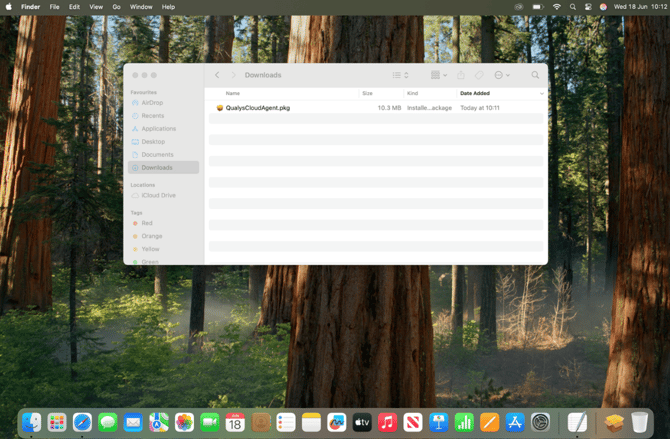
Run the Installer
- Double-click the installer in your Downloads folder
- Follow the prompts to complete the installation
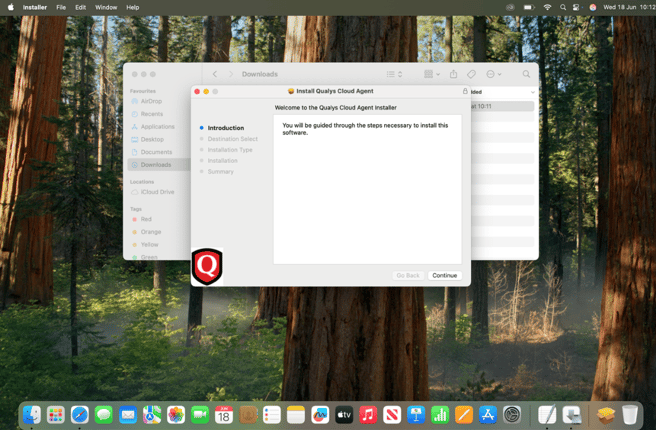
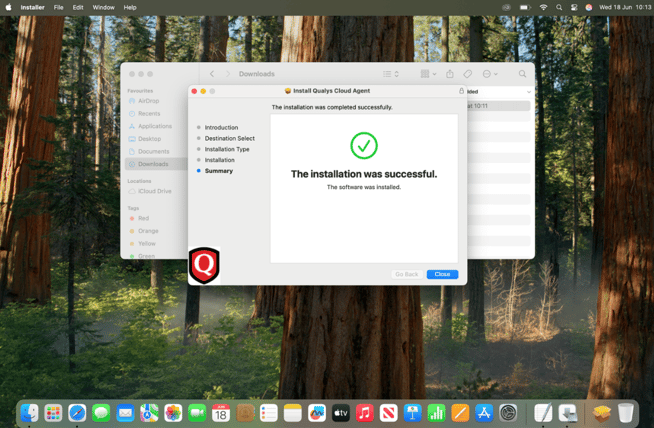
Register the Agent
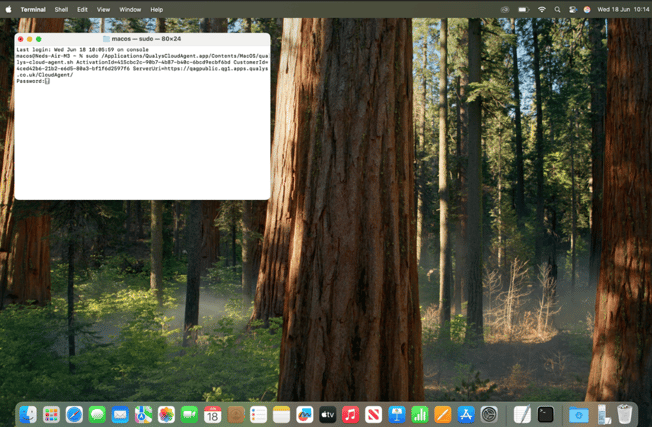
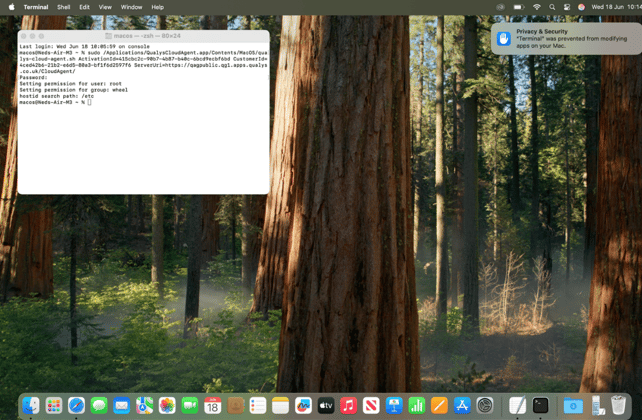
- Open a Terminal window as administrator
- Enter the Qualys activation code from your platform screen and press Enter
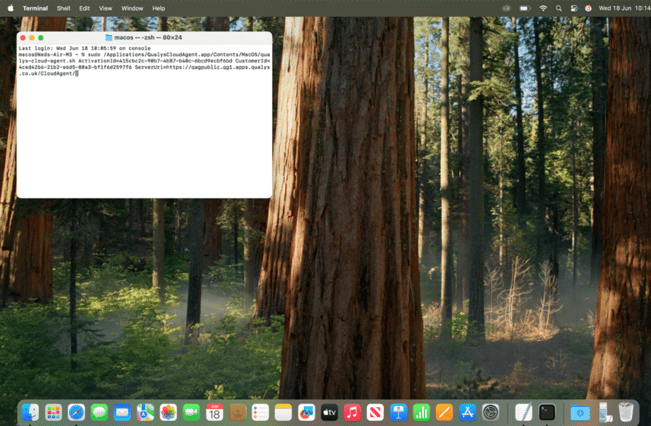
Enter Your Password (if prompted)
- Type your admin password and press Enter
- Note: For security reasons, you will not see any characters appear as you type. Your password is still being entered.