%20(4)-1.png?width=1950&height=299&name=Cybaverse%202024%20White%20new%20(2)%20(4)-1.png)
Vulnerability scanning helps you identify weaknesses or security gaps—commonly referred to as vulnerabilities—within your IT environment. These can exist on your internal devices, external-facing services, or web applications.
Our platform integrates with Qualys, a leading security scanning tool, to perform these scans and provide detailed reports with guidance on how to fix the issues it finds.
Installing Qualys
To start scanning, the Qualys agent needs to be installed on your devices. It supports:
- Windows
- macOS
- Linux
You’ll find step-by-step installation guides for each operating system in our Knowledge Hub.
Qualys Windows Installation
Qualys Linux Installation
Qualys MacOS Installation
CybaVerse AI Vulnerability Scanning Module
If you have the Vulnerability Scanning module in your platform, you’ll have visibility over:
- Internal vulnerabilities (inside your network)
- External vulnerabilities (internet-facing systems)
- Web application vulnerabilities
You’ll also get access to a dashboard that gives you a summary view of your current risk landscape.
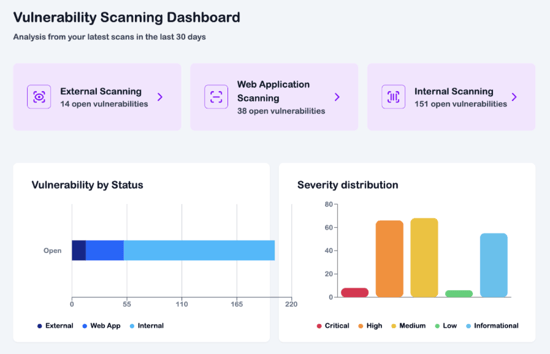
Exploring the Results
- Click into any of the scan sections (Internal, External, or Web Apps) to view individual vulnerabilities.
- You can filter the list by device, vulnerability type, or severity.
- Selecting a specific vulnerability will show a full breakdown, including:
- A description of the issue
- Steps to fix it (remediation)
- The exact location of the affected file or service
Vulnerability Tracking via CE+ Module
If you’re working towards Cyber Essentials Plus (CE+), the CE+ module also includes vulnerability scanning.
- The Internal Results and External Results pages in CE+ will reflect your scan results.
- Fixing a vulnerability in one module (Vulnerability Scanning or CE+) will automatically update it in the other.
Important:
CE+ scan results only show vulnerabilities found on your sample set of devices, so this is not a complete view of your entire network. To see all results, you should also check the main Vulnerability Scanning module.
Running Scans – Automatic and On-Demand
- Automatic Scans: These are run once a week for you, without any action needed.
- Manual Scans (CE+): You can run extra scans for your CE+ sampled devices using the “Run a scan” button at the top-right of the CE+ module.
- Manual Scans (Vulnerability Module): In the main Vulnerability Scanning module, you can run on-demand scans too—up to:
- 4 scans per month
- 4 additional automatic scans
- Totalling 8 scans per type (internal, external, and web applications) per month.
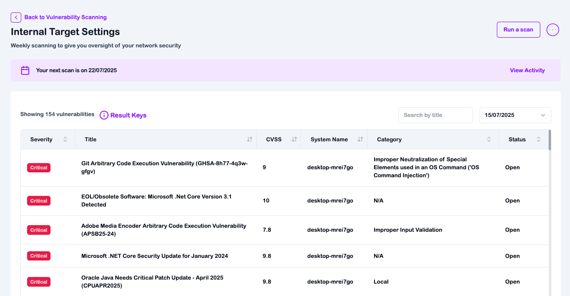
If you need more scans beyond this limit, please get in touch with your account manager, who will be happy to assist.